CertLeaf
How to Generate Certificates From an Excel Sheet for a College Seminar
A practical guide for college departments and seminar teams that need to turn a clean Excel list into bulk certificates, email them, and make them easy to verify.
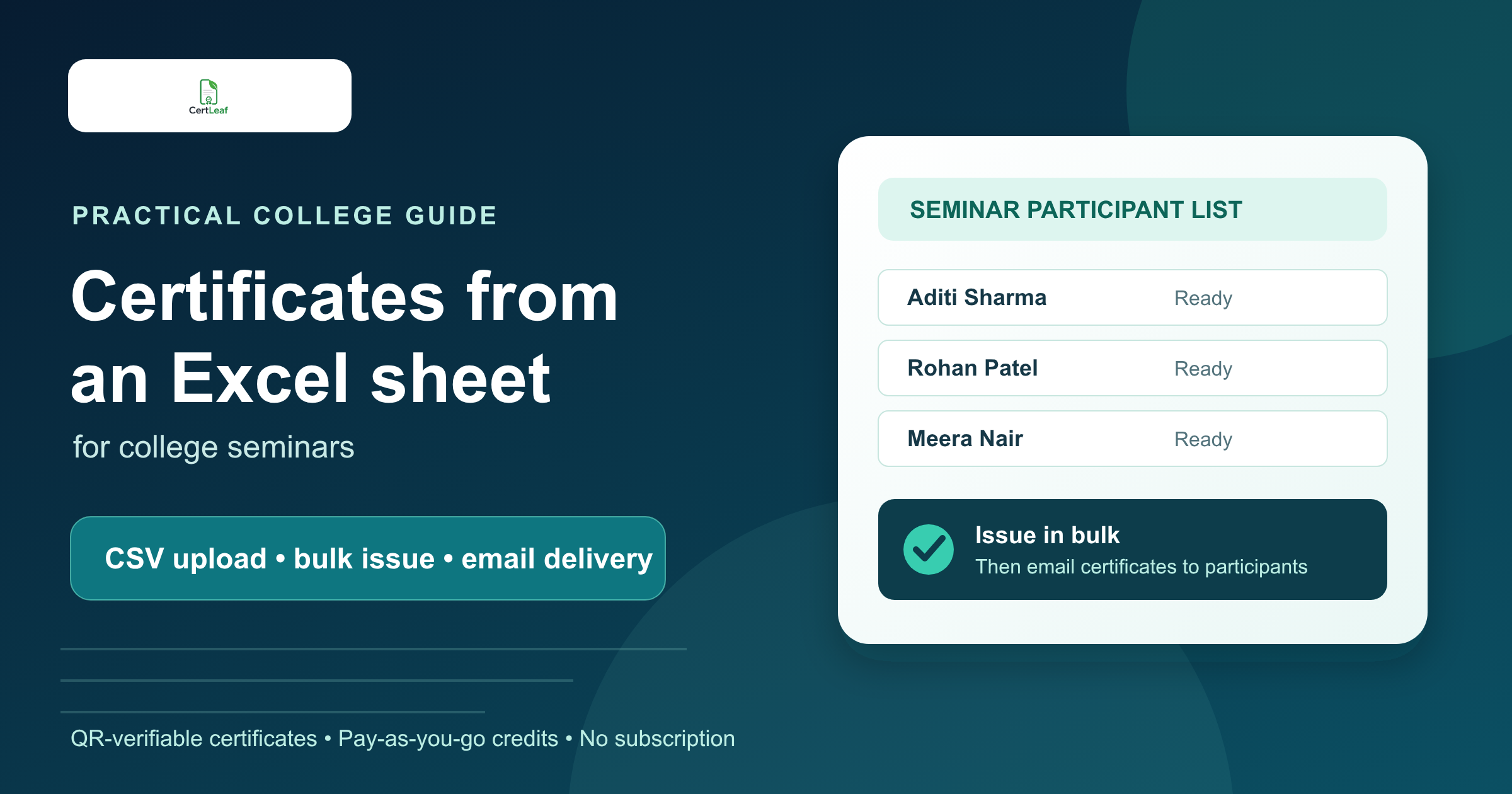
The spreadsheet is usually fine. The manual certificate work is not.
After a college seminar, the participant list often already exists. It may be an Excel file from registrations, attendance, or the department office. The trouble begins when that list is handed to someone with a certificate design and the vague instruction to "add all the names."
That is how a simple 150-person seminar turns into an evening of copy-pasting, exporting PDFs, renaming files, and attaching them to emails one at a time.
You do not need a more complicated spreadsheet. You need a cleaner handoff from the spreadsheet to the certificate workflow: one approved template, one checked list, one bulk issue, and a sensible way to deliver the results.
This guide is for college departments, student bodies, and seminar organisers who want to generate certificates from an Excel list without treating every recipient as a separate design job.
First, decide what the certificate actually recognises
Before touching the Excel file, settle the language on the certificate. A seminar attendance certificate, participation certificate, speaker certificate, and faculty coordinator certificate are not interchangeable.
This sounds obvious, but copied templates create awkward problems. A student who attended a two-hour seminar should not receive a "completion" certificate unless there was an actual completion requirement. A speaker should not get the same wording as an attendee.
For a typical college seminar, separate your list into certificate types if needed:
attendees or participants
speakers, panellists, or resource persons
organisers and volunteers
competition winners, if the seminar included one
You may use separate templates or separate batches. The important part is deciding this before certificates are generated, not after they land in inboxes.
Clean the Excel sheet before you export it
Bulk tools usually use CSV files, which is simply a spreadsheet format that is easy to import. Keep your working Excel sheet, then export a final copy as CSV when the data is ready.
For most seminar certificates, these columns are enough:
nameemailseminar_titleif the title changes across batchescertificate_typeif one list contains more than one categorydateif it needs to appear dynamically
If every recipient gets the same seminar title and date, keep those details fixed on the template. Do not create extra columns just because you can.
Before exporting, run a short check that someone other than the person who made the list can review:
Remove duplicate rows. One registration form submission does not always mean one attendee.
Compare names with the final attendance record, not only the registration list.
Look for blank or malformed email addresses.
Standardise obvious capitalization issues, especially names in all caps.
Check that the column headings match the fields you plan to place on the certificate.
This is not glamorous work, but it is where most certificate mistakes are prevented. A polished template cannot fix a misspelled name imported from the sheet.
Create the certificate template once
Use the approved seminar design as the base. Leave room for the recipient name, the seminar title, the date, the issuing department, and signatories. Long names need more room than a sample name in the design file, so test with one before you commit.
With CertLeaf, you can upload the base design, place dynamic fields such as the name, and save the layout as a reusable template. That is the dividing line between designing a certificate and issuing certificates. The design work happens once; the recipient data changes for every row.
If the department runs recurring guest lectures, webinars, or annual seminars, save the template. Updating the title and date next time should not require rebuilding the layout from scratch.
Export the final list as CSV and issue a small test batch
When the Excel sheet is clean, export the final tab as CSV. Keep the original Excel file too. It is your working record if a coordinator needs to check a correction later.
Upload the CSV to the bulk issue flow and map its columns to the fields in your template. Then do something many teams skip: issue a small internal test batch first.
Use a few rows that reveal likely problems:
a long recipient name
a short recipient name
a row with an optional field, if you have one
one internal email address that your team can inspect
Open the resulting certificates on a laptop and phone. Check the name placement, seminar wording, date, signatories, and email recipient. It takes a few minutes. It can save you from having to explain a formatting mistake to an entire department list.
Email the certificates as part of the same job
Once the sample looks right, issue the remaining batch and email certificates to the addresses in the list. This is the part that manual workflows make unnecessarily painful: downloading files, finding the right attachment, and sending the same message repeatedly.
Keep the delivery email plain. It should say which seminar the certificate relates to, where the recipient can find it, and whom to contact for a correction. Do not make recipients hunt through a generic "Congratulations" message to work out what they received.
A simple correction window also helps. For example, a department can ask recipients to report name or email issues within seven days. That gives people a fair chance to fix errors without leaving the certificate queue open indefinitely.
Add QR verification when the certificate will leave campus
For a small internal seminar, a standard PDF may be enough. But if students are likely to include the certificate in a portfolio, share it on LinkedIn, or submit it to an employer or another institution, QR verification is useful.
A QR-verifiable certificate links the document to a public verification page. Someone checking it can scan the code and compare the displayed record with the certificate. It is a practical alternative to asking a department administrator to manually confirm every PDF months after the seminar.
Use the description carefully: QR verification is a verification route, not a claim that the PDF is digitally signed. The certificate still needs accurate data and a clear issuing organisation.
A realistic workflow for a 200-person seminar
Say a college department runs a career seminar with 180 attendees, 12 volunteers, 6 speakers, and 2 faculty coordinators.
A workable setup is four certificate groups. The organisers prepare one checked spreadsheet tab for each group, use the appropriate wording and template, test a few examples, and issue each batch. Attendees receive certificates by email; speakers and coordinators receive the versions that reflect their contribution. QR verification can be added to the certificates expected to be shared outside the college.
This is still administration. It is just administration that does not require a person to edit 200 PDFs.
Why pay-as-you-go fits college seminar teams
Most college departments do not need certificate software every day. They need it when a seminar, workshop, fest, or training programme ends. A recurring subscription is a poor fit when certificate volume comes in bursts.
CertLeaf uses pay-as-you-go credits, so teams can create reusable templates and issue when they need to. New accounts receive 20 free credits to test the workflow. For a real event batch, check the current credit packs and choose the one that fits the expected number and type of certificates.
The goal is straightforward: turn a final Excel list into accurate certificates that participants receive without a late-night manual sending session.
Related certificate workflows
After preparing the spreadsheet, follow the complete seminar participation certificate workflow.
Before upload, check the certificate recipient CSV for name and email errors.
FAQ
Can I generate certificates directly from an Excel file?
For bulk issuing, export the final Excel sheet as a CSV file, then upload it to a certificate workflow that maps each column to template fields. Keep the original Excel file as your working record.
What columns should an Excel certificate list contain?
Start with name and email. Add only the fields that need to vary on the certificate, such as seminar title, date, role, registration number, or college name.
How do college departments avoid name errors on certificates?
Use the final attendance list, clean the sheet before export, ask a second person to review it, and issue a small test batch before the full list. Most name errors are caught before generation, not after.
Can seminar certificates be emailed in bulk?
Yes. A bulk issuing workflow can generate certificates from the recipient CSV and deliver them to the email addresses in the same list, avoiding manual PDF attachments.
Should a college seminar certificate include a QR code?
Use QR verification when recipients may need to show the certificate outside the college, such as in portfolios, applications, or professional profiles. For informal internal recognition, a standard PDF may be sufficient.
Make the handoff from Excel the last boring step
A college seminar certificate should not depend on someone being willing to spend hours copying names into a design file. Prepare the list, approve the template, test a few examples, and issue the batch when the details are right.
If you have an upcoming seminar, create a CertLeaf template and test the process with the 20 free signup credits before the attendee list grows.