CertLeaf
3 FDP Certificate Templates for Participation, Completion, and Resource Persons
Use three blank FDP certificate templates for participation, completion, and resource persons, then add your own fields and QR verification in CertLeaf.
The first certificate draft usually looks fine because it contains one short sample name and a neatly sized program title. The real test comes later, when the final sheet includes long faculty names, different designations, date ranges, and a program title that needs two lines.
That is why a useful FDP certificate template should do more than look formal. It needs clear space for the fields that will change from one certificate to the next.
Below are three blank FDP certificate templates you can use as starting points:
FDP participation certificate
FDP completion certificate
Resource person certificate of appreciation
None of the templates contains a college, department, institution, or participant name. The blank areas are intentional. You can upload the base design to CertLeaf, place dynamic fields over those areas, and fill them from a CSV when issuing the certificates.
| Template | Best used when | Main wording |
|---|---|---|
| Participation | Attendance or participation is the eligibility rule | "has participated in" |
| Completion | Participants met a stated completion requirement | "has successfully completed" |
| Resource person | A speaker, trainer, or session lead contributed to the FDP | "for serving as a resource person" |
1. FDP participation certificate template
Use a participation certificate when the organizer is recording attendance or involvement in the faculty development program. This is usually the safest choice when there was no assessment, assignment, or formal completion requirement.
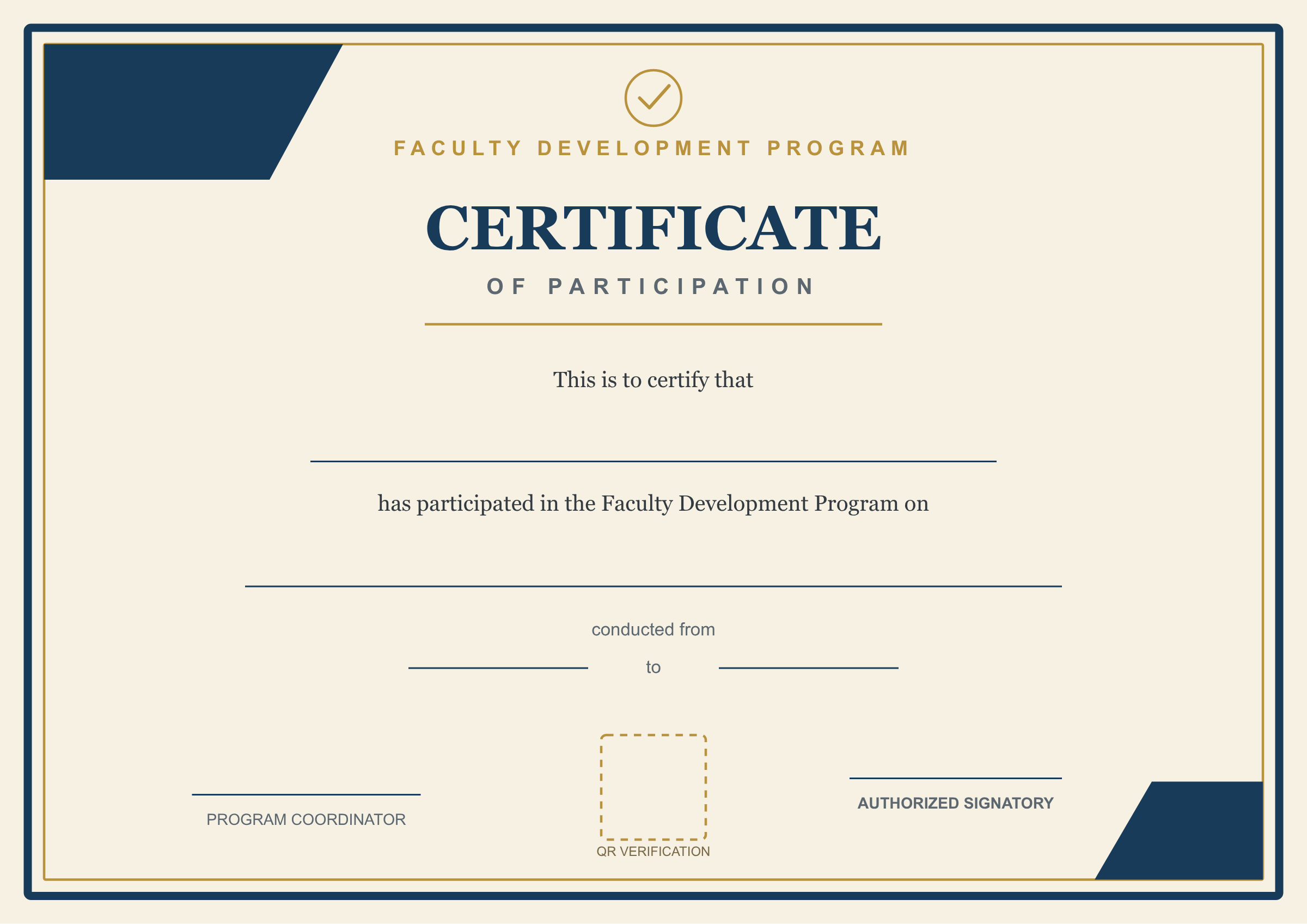
The large blank line after "This is to certify that" is for the participant name. The next blank line is for the FDP title. The smaller lines can hold the start and end dates. A QR code can be placed in the marked verification area when the certificate is set up in CertLeaf.
A practical wording is:
> This is to certify that [Participant Name] has participated in the Faculty Development Program on [FDP Title], conducted from [Start Date] to [End Date].
If designation and institution are important, the sentence can be extended:
> This is to certify that [Participant Name], [Designation] at [Institution Name], has participated in the Faculty Development Program on [FDP Title], conducted from [Start Date] to [End Date].
Do not add designation and institution just because the spreadsheet contains them. Add them only if they are useful on the final certificate and the data has been checked. A short, correct certificate is better than a crowded certificate with inconsistent department names.
2. FDP completion certificate template
Use completion wording only when the FDP had a defined completion rule. That could be minimum attendance across sessions, an assignment, a quiz, a project, or another requirement communicated to participants.
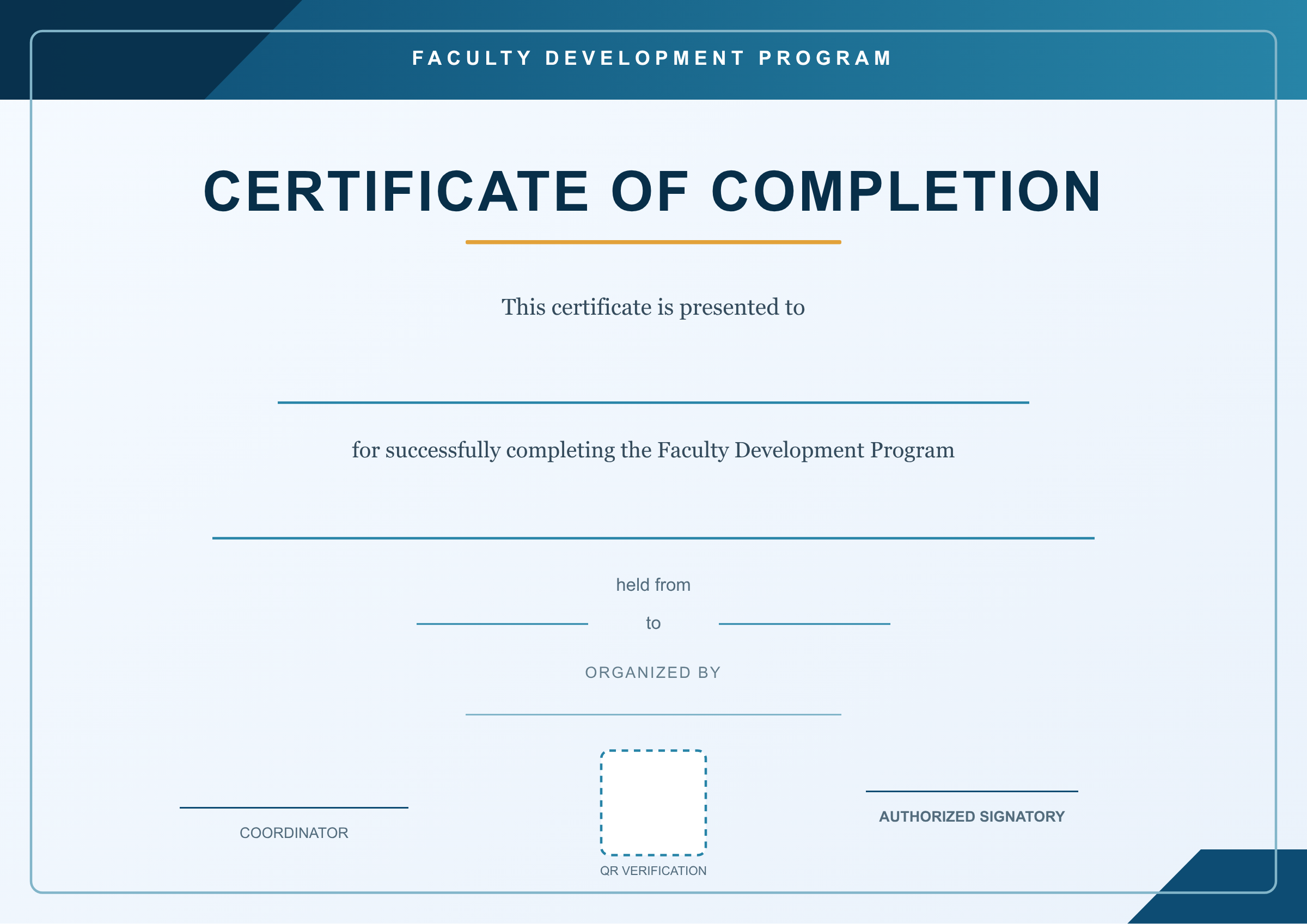
The blue layout leaves more room for a long program title and a separate organizer field. It works well when the title needs to include a theme, subject area, or multi-day format.
Suggested wording:
> This certificate is presented to [Participant Name] for successfully completing the Faculty Development Program on [FDP Title], held from [Start Date] to [End Date] and organized by [Organizer Name].
"Successfully completed" should mean something. If every attendee receives the same certificate regardless of attendance or assessment, use participation wording instead.
I would make that decision before filtering the final spreadsheet. Otherwise, the design says completion while the issuing rule quietly says registration, and the two do not match.
3. FDP resource person certificate template
Participants and resource persons should not receive certificates with the same wording. A resource person delivered a session, led a workshop, reviewed work, or contributed subject expertise. Their certificate should record that role directly.
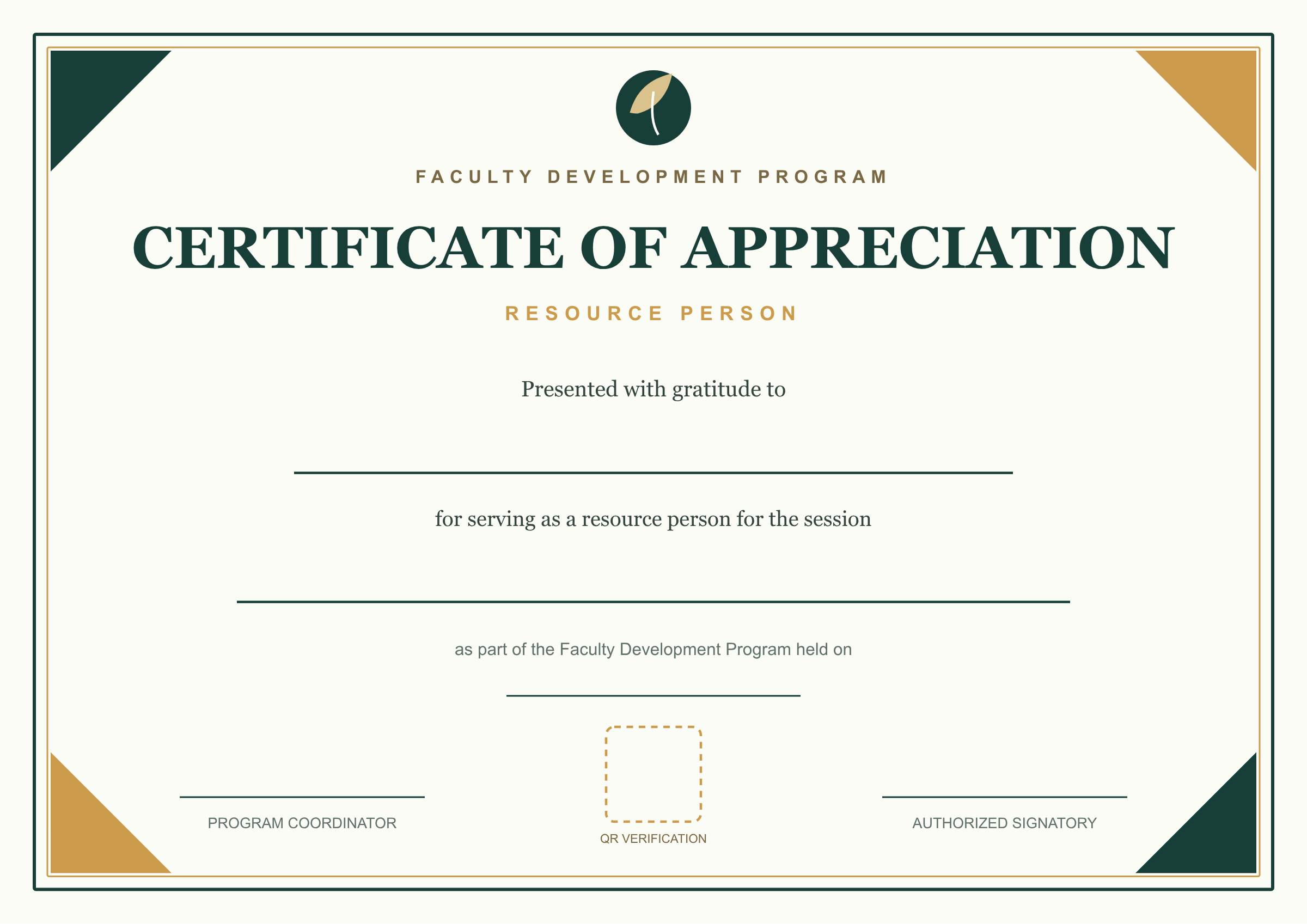
Suggested wording:
> Presented with gratitude to [Resource Person Name] for serving as a resource person for the session [Session Title], as part of the Faculty Development Program held on [Date].
If the speaker handled more than one session, replace the session title with the overall contribution:
> Presented with gratitude to [Resource Person Name] for serving as a resource person for the Faculty Development Program on [FDP Title], conducted from [Start Date] to [End Date].
Keep the role accurate. "Resource person," "speaker," "trainer," and "session facilitator" are related, but they are not always interchangeable. Use the term approved by the organizing team.
What to add after uploading the template to CertLeaf
These images are base designs. They deliberately do not contain fake participant names or college names. After uploading one to CertLeaf, place the changing fields in the blank areas.
A typical setup looks like this:
| Blank area in the design | CertLeaf field | Suggested CSV column |
|---|---|---|
| Main recipient line | Participant or resource person name | `name` |
| Program/session line | FDP title or session title | `fdp_title` or `session_title` |
| Date lines | Start date and end date | `start_date`, `end_date` |
| Organizer line | Department, institution, or organizing unit | `organizer` |
| QR area | Certificate verification QR | Added during verifiable issuing |
| Signature lines | Static signature image or approved signatory text | Set in the template if the same for every recipient |
The base image should contain the fixed visual structure. CertLeaf fields should handle recipient-specific information.
This matters because typing a sample participant name into the background image makes the template harder to reuse. Leave the name area blank, then let the issuing data supply the real name.
Participation or completion: choose the wording first
The two phrases look similar on a certificate, but they make different claims.
Use participated in when the certificate confirms attendance or involvement.
Use successfully completed when the participant met a completion rule that the organizer can explain.
A simple rule might be:
> Participants who attended at least four sessions and submitted the required activity will receive a certificate of completion.
If the actual rule was only "registered and attended," issue an FDP participation certificate. Do not upgrade the wording to make the certificate sound more impressive.
Prepare a clean CSV for bulk FDP certificates
The registration export should not go straight into certificate issuing. It often contains duplicate submissions, personal notes, payment columns, attendance data, and multiple versions of the same name.
Create one final certificate CSV instead.
For a participation or completion batch, useful columns are name, email, designation, institution, fdp_title, start_date, and end_date.
For resource person certificates, use a separate file with name, email, role, session_title, fdp_title, and date.
Keeping resource persons in a separate batch prevents participation wording from reaching a speaker by mistake.
Before issuing, check:
The longest participant name
Names containing initials or hyphens
The longest FDP title
Start and end date formatting
Duplicate email addresses
Blank required fields
Whether every row belongs to the same certificate type
If the longest program title is discovered only after generating the full batch, it can wrap across the participant-name line and throw off every certificate. Testing the awkward rows first catches that problem before the real batch is issued.
How to test an FDP certificate template
Do not judge the layout with a short sample name. Use the difficult rows first.
Generate a small test batch with:
The longest recipient name
The longest designation and institution combination
The longest program or session title
One row with every optional field filled
One row with optional fields left blank
Check the PDF at normal viewing size. Then open it on a phone. Small footer text and signatory labels that look acceptable on a large monitor can become unreadable on a smaller screen.
Also make sure the QR code has enough empty space around it. Decorative lines, borders, and signatures should not touch the code.
Add QR verification when the certificate may be checked later
An FDP certificate often leaves the original email thread. A recipient may submit it for appraisal, professional records, internal documentation, or a future application.
A QR-verifiable certificate gives the reviewer a direct verification path. In CertLeaf, the QR code can point to a public verification page connected to the issued certificate.
For a small internal FDP, a simple certificate may be enough. For inter-institution programs, online FDPs, paid programs, or certificates likely to be shared outside the organizing team, verification is worth considering.
Issue the final certificates in CertLeaf
Once the design and final CSV are ready, the remaining workflow is straightforward:
Upload the blank certificate design.
Create a reusable FDP certificate template.
Place the recipient name, program title, dates, organizer details, and QR field.
Upload the cleaned CSV.
Generate a small sample batch and review it.
Issue the full batch and send the certificates by email.
CertLeaf supports bulk CSV issuing, reusable templates, email delivery, and QR-verifiable certificates. It uses pay-as-you-go credits rather than a subscription, which fits FDPs that run in batches during the year. New users can test the workflow with 20 free signup credits.
For the full list-cleaning and issuing process, read the faculty development program certificate generator guide. This article stays focused on choosing and setting up the template itself.
Related certificate workflows
Before issuing, plan the pay-as-you-go cost of the FDP certificate batch.
FAQ about FDP certificate templates
What is an FDP certificate?
An FDP certificate records a person's participation, completion, or contribution to a faculty development program. The wording should match the person's role and the organizer's eligibility rule.
What should an FDP certificate template include?
Include space for the recipient name, FDP or session title, date or date range, organizer, signatories, certificate ID, and optional QR verification. Add designation and institution only when they are needed and the data is reliable.
Can I use these templates without adding a college name?
Yes. The three designs are intentionally generic. Upload the blank base image to CertLeaf and add your organizer, participant, program, date, signature, and verification fields there.
What is the correct FDP participation certificate wording?
A clear version is: "This is to certify that [Name] has participated in the Faculty Development Program on [Title], conducted from [Start Date] to [End Date]."
Can FDP certificates be generated in bulk?
Yes. Prepare a clean CSV, map its columns to a reusable certificate template, test a few records, and then generate the full batch. CertLeaf can also email the certificates to recipients.
Should resource persons receive a different certificate?
Usually, yes. Their certificate should mention that they served as a resource person, speaker, trainer, or facilitator rather than saying they participated in the FDP.
Final check before issuing
Pick the template that matches the certificate claim, keep the base design free of sample names, and let the real CSV supply the changing details.
Then test the longest rows before generating the full batch.
That small check is what turns a good-looking FDP certificate template into a reusable issuing workflow.