CertLeaf
Sports Certificate Generator for Schools: Bulk Certificates After Sports Day
A practical sports day certificate workflow for schools that need to organize event, age-group, house, team, position, and participation records before issuing certificates in bulk.
At 5:10 pm, the last relay had finished and the sports equipment was back in storage. The certificate file was nowhere near ready.
The athletics sheet listed results by event and age group. House captains had team lists. The participation register included students who entered the heats but not the finals. One relay result showed only a house name, not the four students who ran. The referee and volunteer lists were on separate pages, and the PE department still had to decide whether winners would also receive participation certificates.
This is the work a sports certificate generator for schools needs to support. The school does not only need to put names on a design. It needs to turn several sports records into the correct winner, runner-up, participation, team, volunteer, and referee certificates without losing the event, category, age group, house, or position that gives each certificate meaning.
| Sports day record | What it usually contains | What needs checking |
|---|---|---|
| Entry or participation sheet | Student, class-section, house, selected event | Entry does not always prove participation |
| Heat and final results | Event, age group, category, position | Finalists and winners may be on different sheets |
| Team event list | House or team and result | Every relay or team member must be named |
| Officials and volunteer list | Referee, marshal, scorer, house captain, event helper | Wording should describe the actual contribution |
| Correction notes | Name, class, or delivery email changes | The approved change must reach the issuing CSV |
I would preserve those source sheets, reconcile them in one working workbook, and export certificate-ready CSV files only after the PE department or event owner has approved the results.
Sports certificates need more than one category
A school sports day can produce more certificate types than a classroom event. A student may win the under-14 long jump, participate in a relay, and volunteer at the march-past desk. Those are three different records. Whether the school issues one, two, or three certificates is a policy decision, not something the certificate tool should guess.
Start by agreeing on the certificate set. Winner and runner-up certificates usually need the event, category, age group, house or team, and position. Participation certificates need a clear participation rule. Team certificates need an approved member list. Volunteer and referee certificates need appreciation wording rather than wording that implies the person competed.
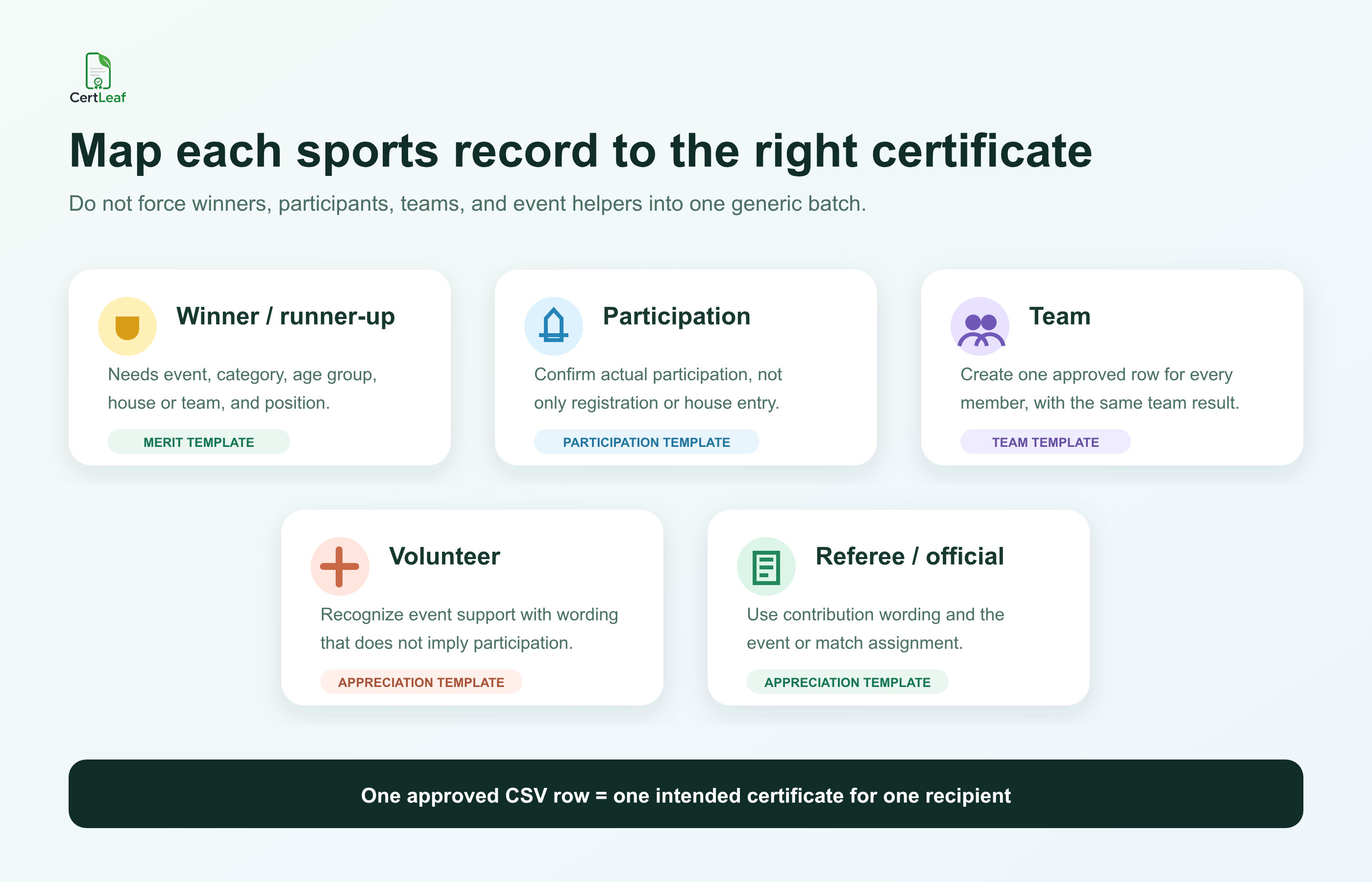
The map matters because one generic design can hide a bad data decision. A gold border does not turn a participation record into a winner record. The approved position must come from the result sheet, and the certificate wording must match it.
Keep position separate from certificateType. Winner, Runner-up, First place, or Second place describe a result. Merit, Participation, Team merit, and Appreciation describe the certificate output. Separating those fields makes the workbook easier to filter and the final batches easier to explain.
Write the participation rule before cleaning the spreadsheet
Sports participation is not always a single attendance tick. A student may have registered for an event but withdrawn before the heat. Another may have run a heat without reaching the final. A reserve team member may have attended but not competed. The school should decide which of those situations qualifies for a participation certificate.
The rule can be simple: a participation certificate is issued to a student who took part in at least one recorded heat, match, field event, or approved team appearance. The exact rule belongs to the school. Write it down before anyone starts deleting rows or marking students as eligible.
The same applies to ranked students. Decide whether a winner receives only a merit certificate or both a merit and participation certificate. If both are intended, record two certificate rows deliberately. If only merit is intended, do not leave the winner in the participation export because someone forgot to remove the duplicate.
A similar distinction appears in quiz events, where team codes and ranked results must be matched back to individual recipients. The guide to issuing quiz participation and winner certificates in bulk is a useful adjacent workflow, but sports data adds heats, age groups, event categories, and relay membership that deserve their own review.
Build a sports day workbook that preserves the result
Do not reduce the source data too early. The working workbook can contain event entry status, heat number, final qualification, timing or score, result approval, team membership, and internal review notes. These fields help the PE department resolve questions even if they never appear on the certificate.
Then define the issuing rule: one approved row equals one intended certificate for one recipient.
For an individual event, that is straightforward. For a relay, football team, kho-kho team, or another group event, the result sheet may list only the house or team. Expand that result into one approved row for every student who should receive a certificate. Keep the same event, age group, team, and position across those rows.
Do not issue only to the house captain because the result sheet used the captain's name as a shortcut. Do not reconstruct the team from memory either. Ask the responsible PE teacher or event official to approve the final member list.
Use a certificate-ready CSV with separate sports fields
A practical CSV header for school sports certificates is:
studentName,email,classSection,sportEvent,category,ageGroup,houseTeam,position,certificateType,date
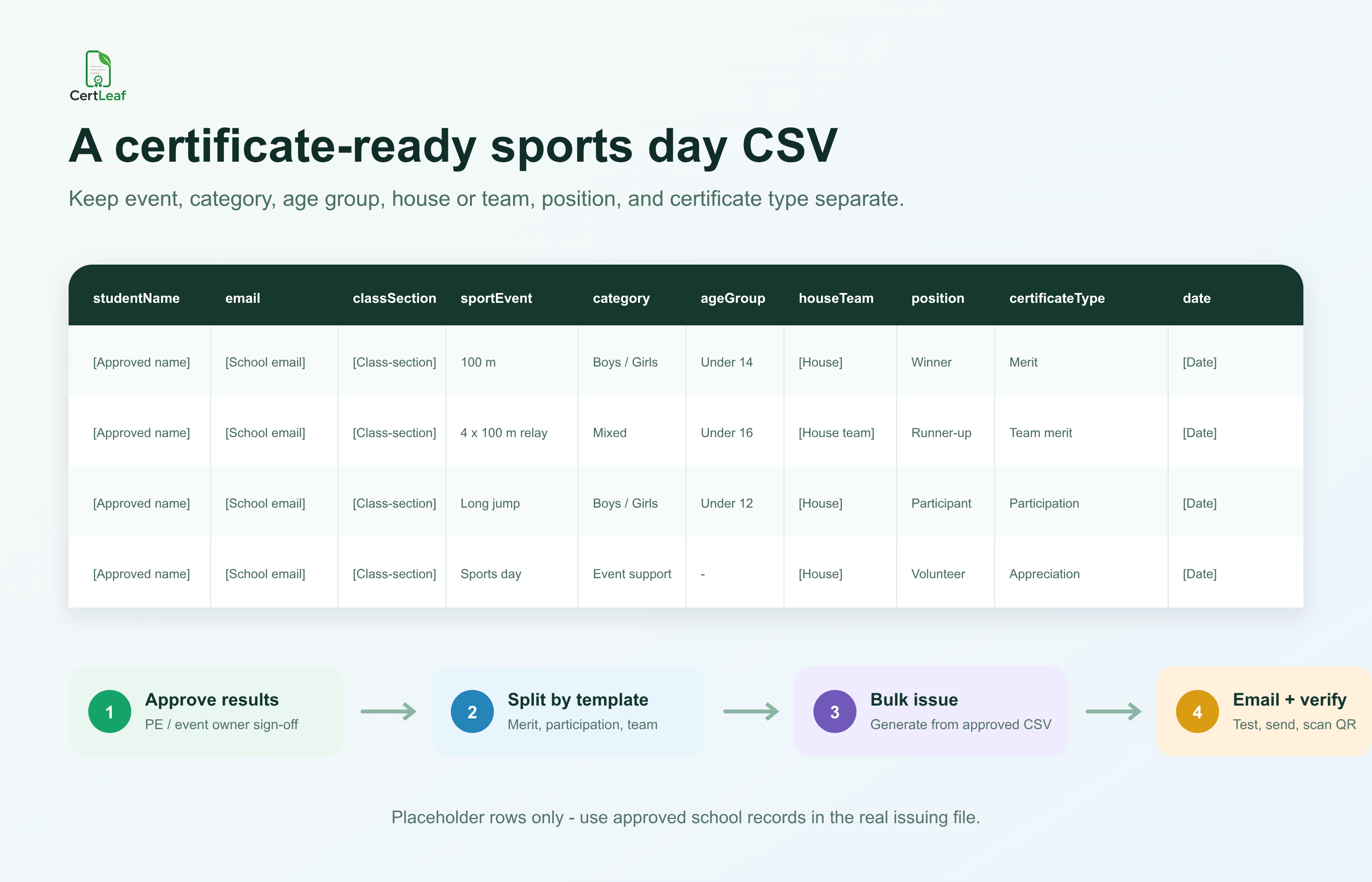
Here is what each field controls:
| Field | Use in the sports certificate workflow |
|---|---|
| `studentName` | The approved certificate name |
| `email` | The school-approved delivery address |
| `classSection` | Class and section when needed on the certificate or record |
| `sportEvent` | The exact event, match, or sports day activity |
| `category` | An approved division such as boys, girls, mixed, individual, or team |
| `ageGroup` | The event division, such as under 12, under 14, or under 16 |
| `houseTeam` | The approved house or team label |
| `position` | Winner, runner-up, first place, second place, participant, volunteer, or referee |
| `certificateType` | Merit, participation, team merit, or appreciation |
| `date` | The sports day, tournament, meet, or event date in one format |
Not every cell needs a value. A referee certificate may not need an age group. An individual event may not need a team label. Keep blanks intentional rather than filling them with invented text.
Examples and visuals should use placeholders, as the CSV visual above does. The real file should contain only approved school records. Before upload, use the detailed checklist for preparing a certificate recipient CSV without name or email errors, especially when two teachers submit different spellings or one delivery address is shared.
Split the approved workbook by reusable template
The working workbook can contain every sports record. The file uploaded for one bulk job should be narrower.
Once the results are approved, filter and export rows by the certificate template they need. A practical set might include a merit template for individual winners and runners-up, a team merit template, a participation template, and an appreciation template for volunteers, referees, scorers, marshals, or other approved roles.
Some schools can reuse the same visual base across these types, but the titles and wording should still match. A winner certificate needs space for the position and age group. A participation certificate may need only the event and date. A referee certificate should recognize officiating, not claim that the person competed.
Name each export so another coordinator can understand it later, for example sports-day-under14-merit-approved.csv or inter-house-relay-team-merit-approved.csv. Save the row count and approver beside the filename in a short batch register.
This is the point where reusable templates save work. The school logo, border, signatures, issuer text, and basic layout can remain fixed. Dynamic fields supply the student, event, category, age group, house or team, position, and date. The same approved template set can be reused for an athletics meet, annual sports day, inter-house tournament, or another school sports event.
Test the rows most likely to break
A tidy first row is not a useful proof. Test the longest approved student name, the longest event title, every certificate type, one team winner, one runner-up, one row with a blank optional field, and one row with every sports field filled.
Read the certificates at normal size. Check that an event such as 4 x 100 m relay does not collide with the age group, that a long house or team label stays inside its field, and that Runner-up is not displayed as participation. If the certificate includes QR verification, scan the exported certificate and compare the public page with the issued record.
The verification page should agree with the core certificate record. QR verification does not decide whether the referee's result was correct, certify a school's sports policy, or act as official accreditation. The school owns the result. The QR route helps a recipient or reviewer check the issued record.
For a deeper explanation of that boundary, read the guide to QR code certificates and public verification.
Send sports certificates without matching PDFs by hand
Manual delivery becomes risky when one folder contains merit, participation, team, volunteer, and referee PDFs. A coordinator has to open a file, identify the recipient, copy an email address, attach the right document, and repeat the process across every event and age group.
With an approved issuing CSV, the certificate stays connected to the delivery email in the same row. Send an internal test first. Open it on a phone, check the subject, certificate type, student details, and download flow. Scan one QR-verifiable winner certificate. Then send the approved batches.
Keep the email short and identify the sports event and certificate type. Tell recipients or families where to request a correction. The bulk certificate email delivery workflow covers test sends, recipient checks, and follow-up handling in more detail.
After delivery, save the exact CSV used for each batch. Record corrections separately. A missed relay member, corrected email, or late-approved referee can go into a small follow-up batch instead of reopening and silently changing the main sports day file.
Where CertLeaf fits after the results are approved
CertLeaf handles the repetitive issuing work after the school has approved its certificate rules and recipient data. A coordinator can upload a base certificate design, create reusable templates, import the reviewed CSV, issue certificates in bulk, and distribute them by email. Winner, team, or other selected certificates can be QR-verifiable through a public verification page.
There is no subscription. Credits are pay-as-you-go, which fits schools that issue certificates after sports day, athletics meets, tournaments, or inter-house events rather than every month. India-first customers can buy credits in INR through Razorpay, and new accounts receive 20 free signup credits for testing.
Use those credits on difficult proofs rather than perfect sample rows. Test a long name, an under-age-group event, a relay team member, a winner and runner-up, one appreciation certificate, one email delivery, and one QR scan.
The boundary is important. CertLeaf does not decide who participated, which house won, whether a reserve player qualifies, or what counts as an approved referee role. The school and event officials approve those facts. CertLeaf turns the approved rows into consistent certificates and handles bulk issuing, delivery, and verification.
Sports certificate generator for schools FAQ
What should a sports certificate generator for schools support?
It should support bulk CSV issuing, reusable templates, separate certificate types, email delivery, and QR verification when a certificate may need a public check. It should let the school preserve event, category, age-group, house or team, and position data instead of reducing every record to a name.
What fields belong in a school sports certificate CSV?
A useful structure is studentName, email, classSection, sportEvent, category, ageGroup, houseTeam, position, certificateType, and date. Keep internal judging or performance notes in the working workbook unless they are needed on the certificate.
How should relay and team certificates be prepared?
Create one approved certificate row for every team member who should receive a certificate. Use the same approved event, age group, house or team, and position across those rows. Do not issue only to the captain unless that is the school's stated rule.
Should winners also receive participation certificates?
The school should decide this before issuing. If both certificates are intended, record two outputs deliberately. If the merit certificate replaces participation, remove the winner from the participation export.
Can volunteer and referee certificates use the winner template?
Usually no. Volunteer and referee certificates should use appreciation or contribution wording. A winner template records a competitive result and can misrepresent what the recipient did.
Should school sports winner certificates include QR verification?
QR verification is useful when the certificate may be shared outside the school or checked later. A simple certificate may be enough for low-stakes internal recognition. QR verification provides a public check of the issued record, not accreditation or proof that the result decision was correct.
Can CertLeaf send school sports certificates by email in bulk?
Yes. CertLeaf can issue certificates from an approved CSV and distribute them to the email address in each row. Test one delivery before sending the full batch.
Is CertLeaf a subscription sports certificate generator?
No. CertLeaf uses pay-as-you-go credits. New accounts receive 20 free signup credits, and Indian customers can purchase credits in INR through Razorpay.
Finish sports day with a record the school can explain
The cleanest certificate batch starts with approved results, not a certificate design. Preserve the entry, heat, final, team, volunteer, and referee records. Decide what each certificate means. Build one reviewed workbook, then export separate CSV files for the right reusable templates.
Test the difficult rows. Issue each category in bulk. Send certificates from the same recipient data. Use QR verification where a winner or team certificate may need a public check later.
That leaves the PE department with more than a folder of PDFs. It leaves a clear record of which sports certificate was issued, to whom, for which event, and why.