CertLeaf
This QR Code Is Duplicate: What the Certificate Warning Means
A calm guide to duplicate QR certificate warnings, copied PDFs, verification-page mismatches, and the next steps for recipients and issuers.
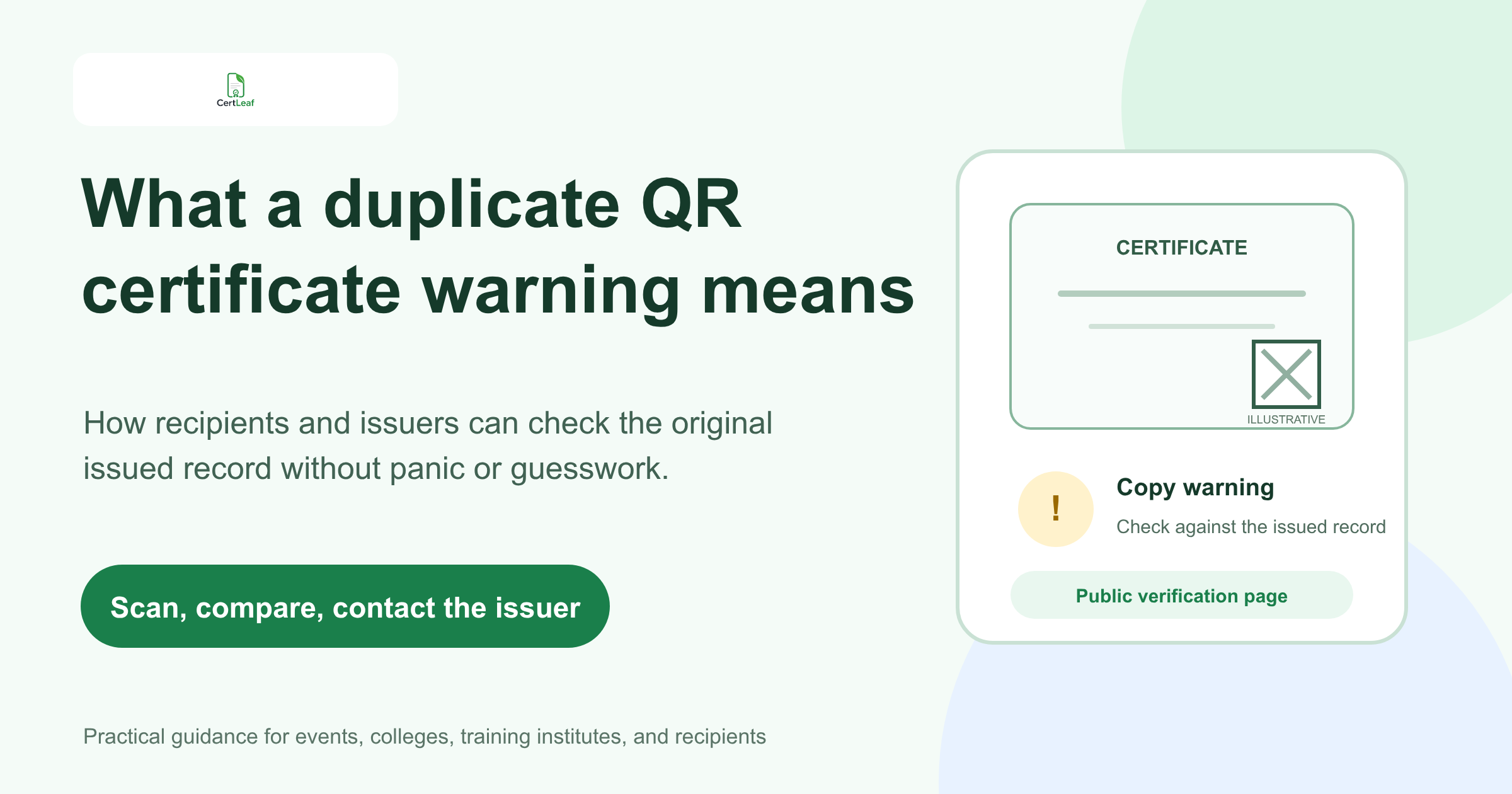
Consider a composite scene from a training institute in Bengaluru. At 9:10 on a Monday morning, the coordinator received two WhatsApp messages about the same course certificate. One learner had printed the PDF at a shop. Another had taken a screenshot from a LinkedIn post and scanned the QR code from a second phone.
Both people expected a simple green confirmation. One saw a warning about a duplicate QR code and an "original printed certificate." The learner thought the certificate had become invalid because it had been printed twice. The coordinator wondered whether she needed to reissue the whole batch.
Usually, the calmer first step is to compare the document with the issued record. A copied QR code can still open the destination connected to the original certificate. That does not mean every screenshot, photocopy, or edited PDF carrying that code should be treated as the original issued document.
| What you see | What it may mean | What to do first |
|---|---|---|
| Details match the certificate | The QR route points to the expected issued record | Keep the issuer's original email or PDF |
| Warning mentions a duplicate or copy | The code may have been scanned from a reproduction | Compare the visible document with the record |
| Recipient, program, date, or ID differs | The copy and issued record do not agree | Stop and contact the issuer |
| Page does not open | The image may be unclear, damaged, or the route unavailable | Retry from the original PDF, then ask the issuer |
The exact warning is not a universal QR standard, and different verification systems may use different wording. It also should not be read as proof that a platform has detected fraud. Treat it as a prompt to check the original issue details.
What the duplicate QR code warning means
Some people search the warning exactly as it appeared on their screen:
> this qr code is duplicate and only valid for it's original printed certificate.
The phrase is awkward, but its practical message is usually this: the QR code belongs to one original certificate record, and seeing the same code on a copy does not create a second independently issued certificate.
The version requested with the possessive corrected is:
> this QR code is duplicate and only valid for its original printed certificate,
Here, "its" is correct because it shows possession. "It's" means "it is" or "it has." A more natural full sentence would be: "This QR code is a duplicate and is valid only for the original printed certificate."
Do not overread the wording. It does not automatically tell you who made the copy, why it was copied, or whether the recipient did anything improper. Certificates are routinely printed, downloaded again, photographed, and shared with colleges or employers. The useful question is whether the certificate being shown still agrees with the issuer's record.
Why the same QR route can appear on a copy
A QR code is an image that contains a route, usually a URL. When someone photocopies a certificate, takes a screenshot, or exports the same PDF again, that image can be copied too. Scanning it may still open the same page.
That behavior is not surprising. Copying a road sign does not create a new destination. In the same way, reproducing a QR image does not create a new certificate record. An ordinary static QR code cannot, by itself, distinguish the original print from a photocopy or screenshot; any warning behavior depends on the verification system around it.
This is why a certificate checker should understand how QR certificate verification works. The value comes from comparing the public page with the document in front of you, not from the fact that a square code scanned successfully.
In this composite Bengaluru example, the coordinator asked both learners to open the PDFs from their original delivery emails. One matched the verification page. The screenshot from LinkedIn showed a cropped certificate and did not include the full certificate ID. That second file was not enough to complete the check, even though its QR image opened a real record.
What to compare on the verification page
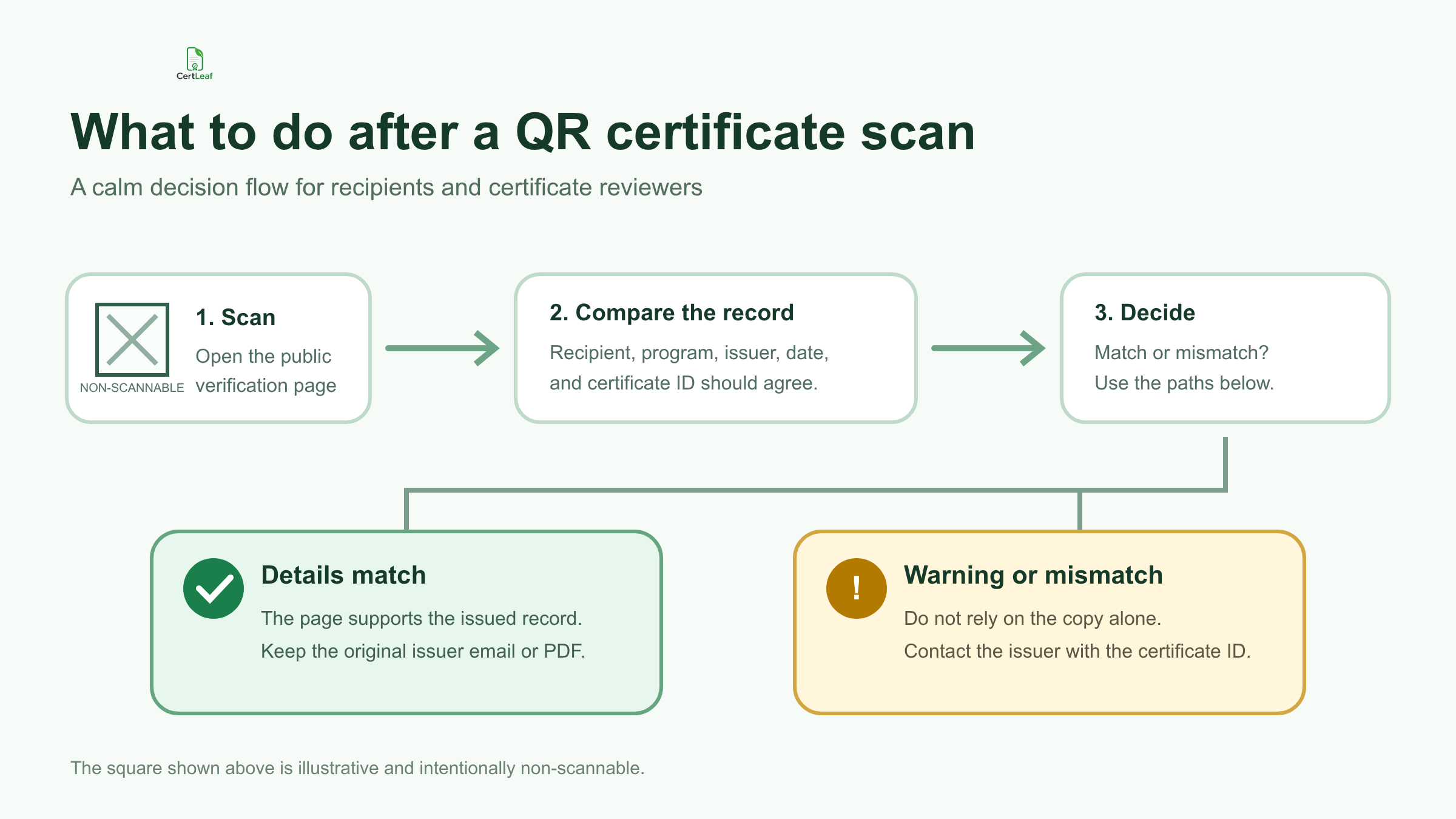
Start with the details a normal person can verify without access to the issuer's internal spreadsheet. Compare the recipient name, event or course title, issuer, date, and certificate ID if one is shown.
A match across those fields supports the conclusion that the document corresponds to that issued record. A mismatch should remain unresolved until the issuer checks it. Do not explain away a different name as a formatting problem or assume an edited program title is harmless.
If the QR opens a generic homepage, shared drive, or the same PDF, the checker has little independent information to compare. A useful verification path should be tied to one issued certificate record. For issuers planning that structure, the guide to assigning a unique ID and verification record to every certificate covers the batch setup in more detail.
Screenshots, photocopies, and edited PDFs can mislead
A screenshot may be innocent. A learner might crop a certificate for a portfolio. A photocopy may be required for a college file. A print shop may resize the page. None of those actions automatically changes the underlying issued record.
The problem appears when the copy is treated as self-verifying. Visible text in an image or PDF can be changed while the old QR route remains. The code may then open a legitimate record for a different visible name, event, or certificate ID.
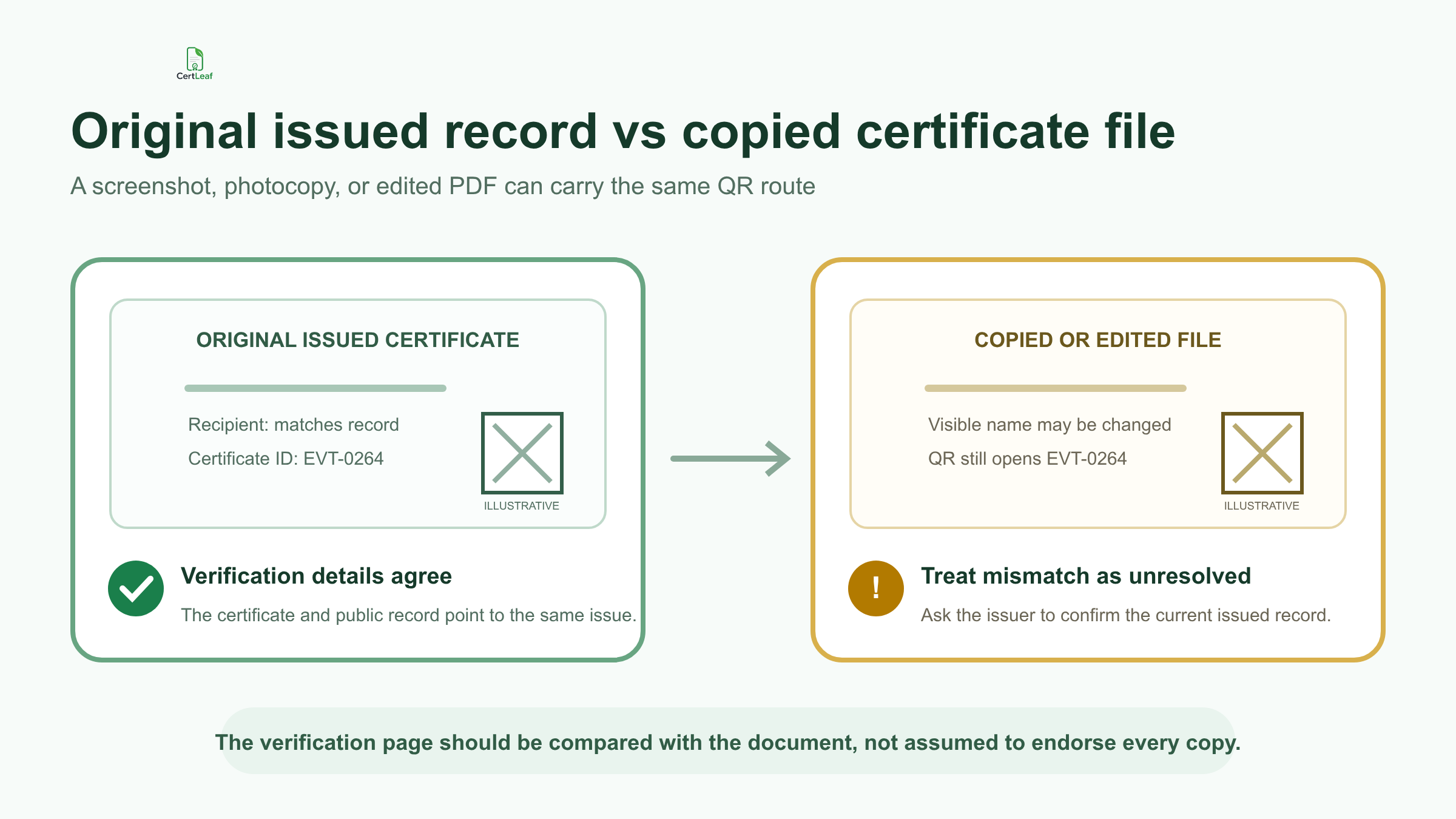
That does not require a fear-heavy conclusion. It requires a boring comparison. If the document and page agree, keep the original issuer delivery as context. If they do not agree, ask the issuer to confirm what was issued.
A QR page should not be assumed to endorse every file on which its code appears. It confirms the record it displays. The person checking still has to compare that record with the certificate being presented.
What a certificate recipient should do next
First, find the certificate in the issuer's original email or download location. Open that file instead of relying on a screenshot forwarded through WhatsApp or copied from social media.
Scan the QR code from the original PDF or a clear print. Then compare the visible details with the verification page. If everything agrees, save the original email and certificate together. They provide useful context if a college, recruiter, or training provider asks later.
If a warning remains, or any important field differs, contact the issuer. Send the certificate ID, the email address used for registration, the event or course name, and a screenshot of the warning. Avoid sending identity documents or unrelated personal data unless the issuer has a clear reason and secure process for requesting them.
Do not edit the PDF to make it match the page. A name correction should go back through the issuer so the certificate record and delivered file remain aligned.
What an event organizer, college, or training institute should check
When a recipient reports a duplicate QR warning, do not immediately regenerate every certificate. Find the issued record first. Confirm which CSV row, template, certificate ID, and recipient email produced it.
Then scan the QR code from the exported certificate, not only from the template preview. Compare it with the public page. Scan two or three other certificates from the same batch as well. Different recipients should not all resolve to one sample record.
Before future sends, test certificate proofs before the bulk email. I would include the longest name, a corrected row, and at least two ordinary recipients in the test set. The purpose is to catch a repeated destination or mismatched field while the batch is still under the organizer's control.
If only one recipient needs a corrected name or email, handle that record without silently changing the original batch file. Keep a short correction note so another coordinator can understand which version is current.
Where CertLeaf fits
CertLeaf supports QR-verifiable certificates with a public verification page for issued records. An organizer can create a reusable template, upload an approved recipient CSV, issue the batch, and distribute certificates by email.
That workflow helps keep one issued record connected to the certificate that was generated for it. CertLeaf does not replace the organizer's eligibility decisions, prove that every screenshot is original, or claim advanced fraud detection. The issuer still needs to approve the recipient data, test the exported certificates, and respond when a record does not match.
For colleges, event teams, and training institutes that issue in bursts, CertLeaf uses pay-as-you-go credits with no subscription. New accounts receive 20 free credits for testing. Simple certificates use 1 credit and QR-verifiable certificates use 2 credits.
After the records have been checked, teams can send certificates by email automatically after an event instead of sharing a folder full of PDFs. Direct delivery gives each recipient a clearer route back to the original issuer message.
FAQ about duplicate QR certificate warnings
Does a duplicate QR warning mean my certificate is fake?
Not necessarily. It may mean the code was scanned from a screenshot, photocopy, reprint, or other reproduction. Compare the certificate with the public verification record and contact the issuer if any important detail differs.
Can printing a certificate twice make the QR code invalid?
Printing the same certificate twice usually reproduces the same QR image and route. The second print does not create a new issued certificate record. Whether a warning appears depends on the verification system and its wording.
What is the correct grammar for "only valid for it's original printed certificate"?
The possessive form is "only valid for its original printed certificate." The apostrophe in "it's" would mean "it is" or "it has." A smoother sentence is: "This QR code is a duplicate and is valid only for the original printed certificate."
What if the certificate name does not match the QR verification page?
Treat the check as unresolved. Do not rely on the copied file alone. Contact the issuing organization with the certificate ID, course or event name, and the email used to receive the certificate.
Should an issuer create a new QR code for every printed copy?
A normal reprint of the same issued certificate does not need to become a new credential. The important setup is one certificate record and verification destination per issued certificate, with a documented process for corrections or replacements.
Can a QR code prove that a PDF was never edited?
A QR route by itself does not prove that every visible part of a PDF or screenshot is unchanged. It lets the checker open a record and compare the displayed details. Do not describe ordinary QR verification as cryptographic proof or advanced counterfeit detection.
How does CertLeaf help with QR-verifiable certificates?
CertLeaf lets issuers use reusable templates, bulk CSV issuing, email delivery, and QR verification with a public page for issued records. Credits are pay-as-you-go, so occasional event and training teams do not need a monthly subscription.
Keep the check simple
In the composite Bengaluru scene, the coordinator did not reissue the whole course batch. She checked the original delivery, matched the certificate ID and learner details, and asked the second learner to use the full PDF instead of a cropped social screenshot.
That is the practical response to a duplicate QR certificate warning: return to the original issuer file, compare the public record, and ask the issuer when the details do not agree. A scan is the start of the check, not the conclusion.