CertLeaf
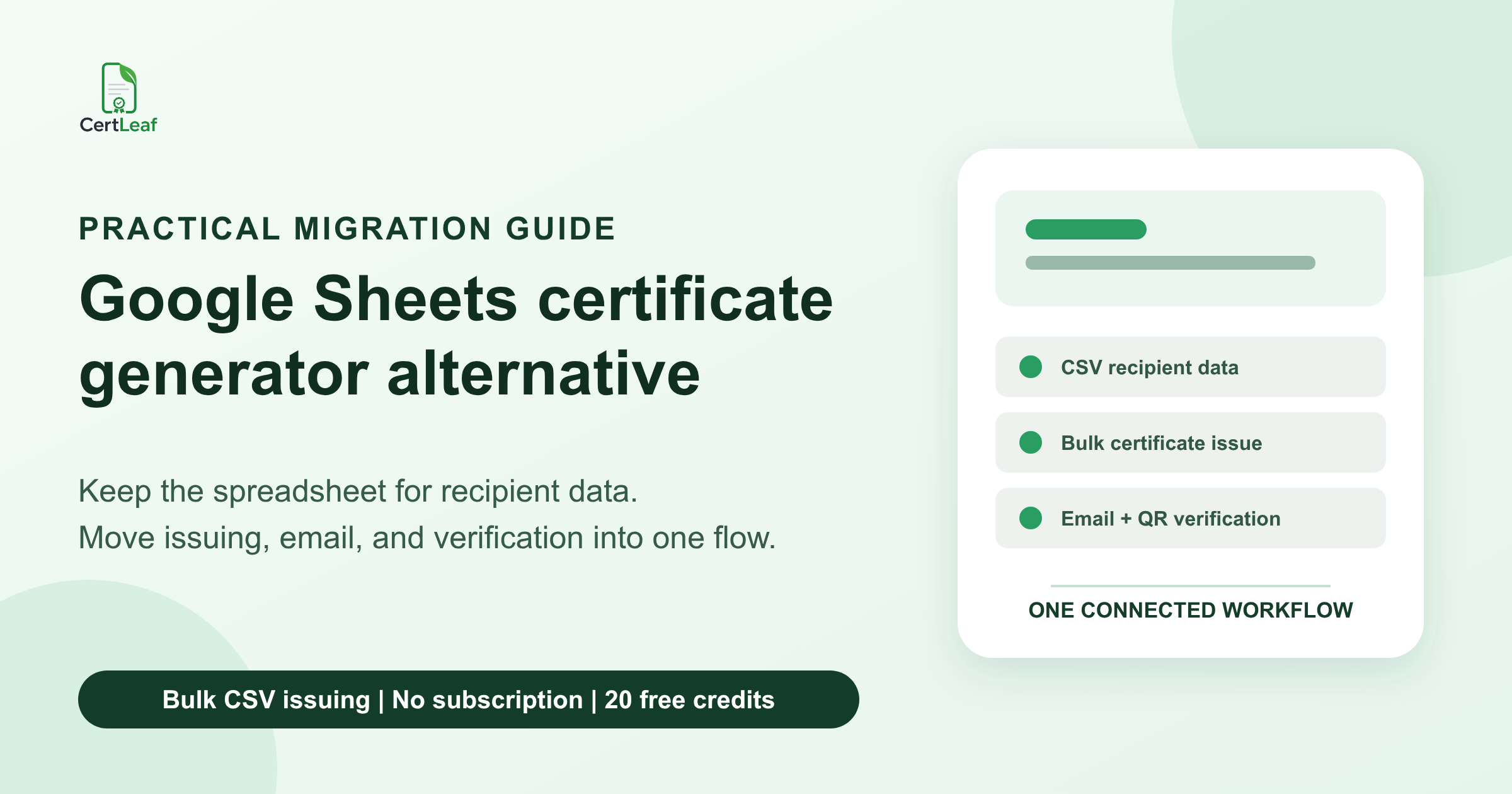
Google Sheets Certificate Generator Alternative: Move From Mail Merge to Verifiable Bulk Certificates
A practical guide for teams moving from spreadsheet mail merge and manual PDF emails to bulk certificate issuing, delivery, and QR verification while keeping Google Sheets for recipient data.
Here is a hypothetical college entrepreneurship workshop at 8:35 pm. The certificate sheet looks ready: 214 eligible participants, a column that joins each name to a PDF filename, and a mail merge draft waiting in another tab.
Then the coordinator notices two rows for the same student. One used a college email and the other used a personal address. A volunteer had corrected three names in the sheet after the PDFs were exported, so the files no longer matched the latest data. The team still had to attach or link every certificate, check which emails went out, and answer the first request for a verification letter.
This article focuses on the handoff after the team approves its Google Sheet. Template placeholders, PDF generation, filenames, email rules, correction copies, and verification links all need to stay aligned with the same recipient row.
A useful Google Sheets certificate generator alternative keeps the spreadsheet as the place where your team prepares and approves recipient data. It then moves the issuing work into a system built to create, deliver, record, and verify certificates.
| Part of the job | Google Sheets is useful for | Where a certificate issuing tool helps |
|---|---|---|
| Recipient data | Cleaning names, emails, roles, and eligibility | Mapping approved columns to a reusable template |
| PDF creation | Supplying merge values | Generating the certificate batch |
| Delivery | Holding recipient email addresses | Matching and sending each certificate |
| Corrections | Recording requested changes | Issuing a corrected record without rebuilding the whole process |
| Verification | Storing an ID or URL | Connecting each QR code to an issued certificate record |
Keep Google Sheets as the approval layer
A school office, training coordinator, or college club often already knows how to use Google Sheets. Several people can check the list, filter attendance, mark completion status, and resolve spelling questions without buying another database.
I would keep Google Sheets in charge of that work. The migration starts only after one person has approved the final recipient tab.
A working spreadsheet can also contain information that should never appear on a certificate: attendance notes, payment status, phone numbers, feedback completion, or a coordinator's comments. The team needs those fields to decide who receives what. The final issuing file does not.
The trouble begins when the spreadsheet is asked to coordinate tools that do not share one certificate record. A name change in row 86 does not automatically tell you whether the old PDF was deleted. A successful mail merge does not prove the right attachment reached the right inbox. A QR image pasted onto the design does not create a verification page for that recipient.
Mail merge still has a reasonable place. For ten appreciation certificates that will be handed out internally, a familiar manual workflow may be perfectly adequate. An issuing tool earns its setup when the team has a real batch, repeated events, recipient-specific email delivery, corrections, or certificates that other people may need to verify.
Where manual mail merge becomes fragile
Most failures begin with small handoffs rather than one dramatic mistake.
The coordinator exports a sheet. Someone else edits the template. A script or add-on creates PDFs. The files land in a folder with generated names. Another person prepares the email merge. A late correction arrives on WhatsApp. Nobody is certain whether the row, PDF, message, and verification link now describe the same certificate.
Ownership gets blurry too. Who approved the row? Which template version produced the PDF? Did the email use the corrected address? Which link belongs to the final certificate? A connected issuing record gives the team somewhere concrete to answer those questions.
Consider another hypothetical example: a teacher training session in Mysuru with 96 approved names. The team regenerated the PDFs after fixing the program date, but the email folder still contained the first exports. The documents looked almost identical. The person sending them had no reliable way to tell which version belonged in the final batch.
That is the practical limit of a stitched workflow: every handoff creates another place where versions can separate.
A certificate issuing system should keep the reusable template, recipient data, generated certificate, delivery step, and verification route connected. It will not decide whether a teacher met the attendance rule or whether an initial is correct. Those decisions still belong in the approved spreadsheet. It should make the approved decision easier to issue consistently.
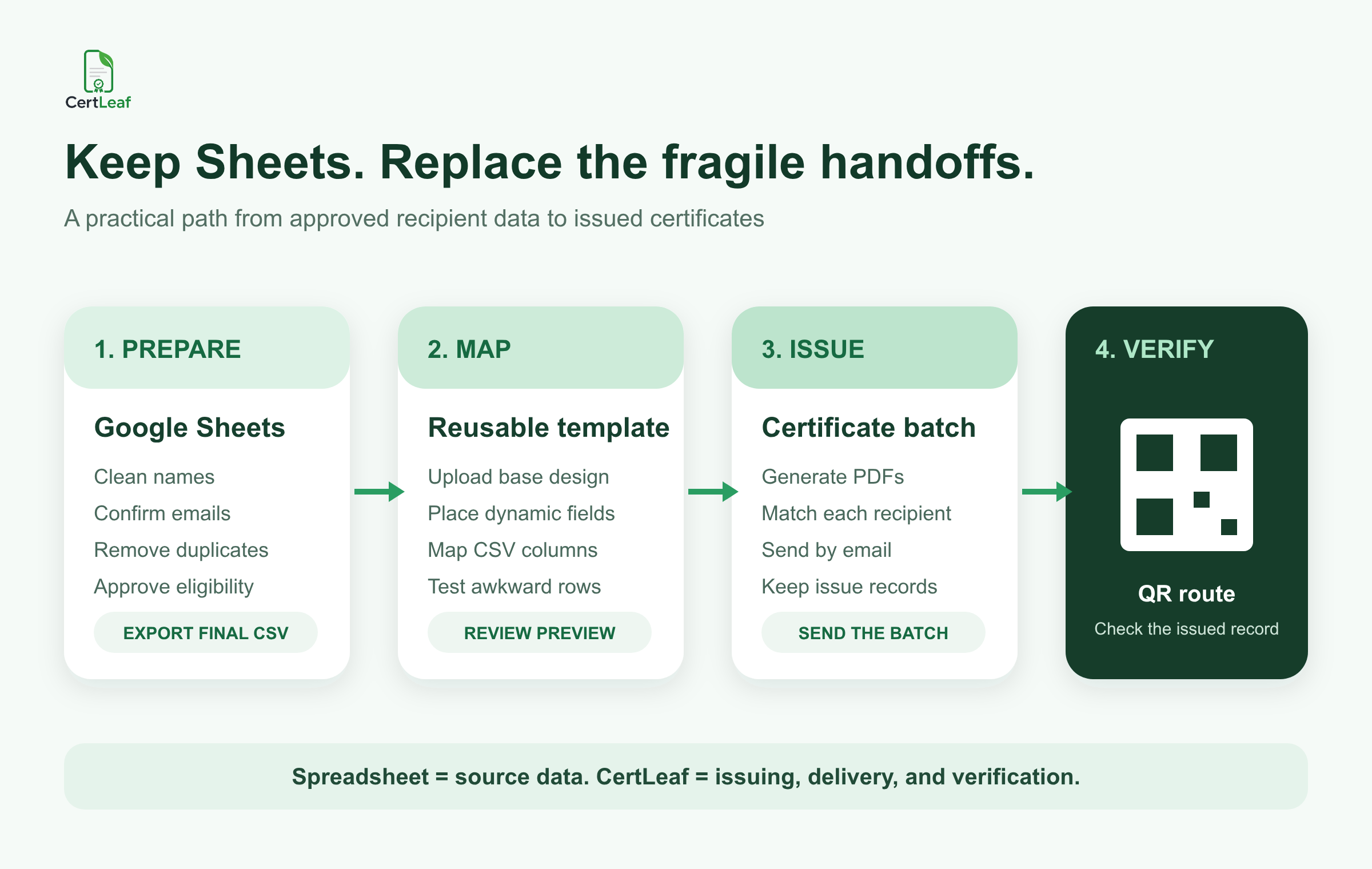
A practical migration from Google Sheets to CertLeaf
You do not need to redesign the event's whole admin process. This migration deliberately begins at the handoff between approved data and certificate generation. Registration reconciliation, attendance decisions, and name approval remain in the spreadsheet; the six steps below move only the certificate operation.
1. Clean the spreadsheet columns
Make one final tab for certificate issuing. Keep one approved row per certificate. Use short headers such as full_name, email, program_name, completion_date, and certificate_type.
Remove test entries and resolve duplicate identities. Check the names people expect to see on the certificate. Confirm that the email column contains delivery addresses, not a mixture of student, parent, department, and old institutional accounts that nobody has reviewed.
If your source workbook still contains registration, attendance, feedback, and correction tabs, use the guide to prepare a clean certificate recipient CSV before uploading anything. Aim for one defensible issuing list. The rest of the workbook can remain a practical working file.
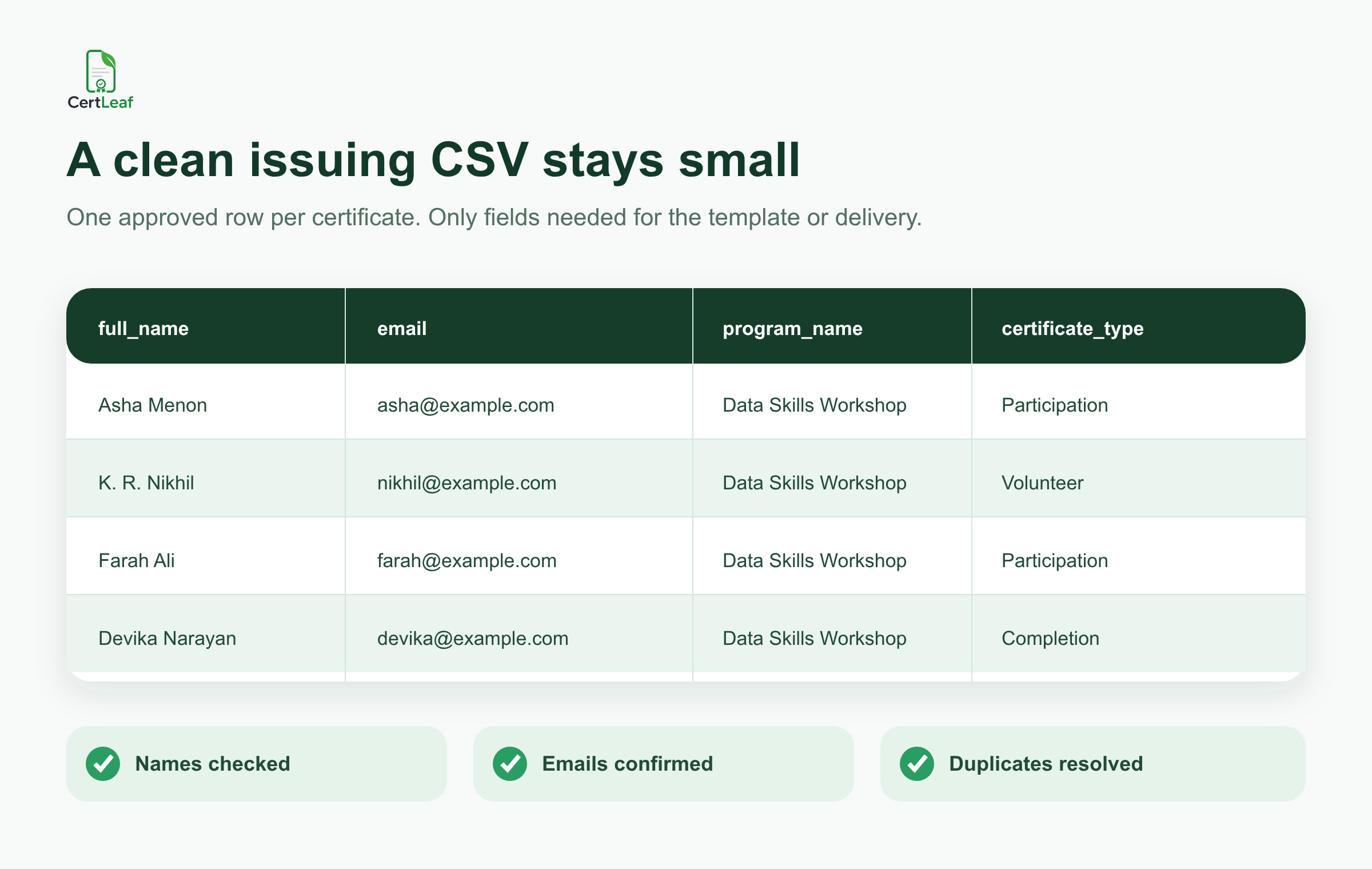
2. Export the approved tab as CSV
Keep the Google Sheet as the working source. Export only the final issuing tab as CSV once the responsible person has approved it.
Give the file a name that will make sense later, such as mysuru-teacher-training-approved-2026-09-06.csv. Save that exact export. If a correction arrives after the batch, preserve the original and record the change rather than quietly replacing the issued file.
3. Create a reusable template and map the fields
In CertLeaf, upload the approved base certificate design. Place the dynamic fields that change for each recipient, then save the setup as a reusable template.
Map the CSV columns to those fields. The visible certificate might use full_name, program_name, completion_date, and certificate_type. The email field controls delivery but normally should not appear on the certificate.
Test the rows most likely to expose a mistake: the longest name, a name with initials, the longest program title, a volunteer or speaker with different wording, and one internal email address. A random first-row preview is less useful than a deliberate awkward-row test.
4. Issue the certificate batch
Once the preview is correct, issue the approved CSV as a batch. CertLeaf generates the recipient-specific certificates from the saved template instead of asking the team to manage a folder of manually merged PDFs.
Keep different certificate wording in separate templates or batches when needed. That prevents a participation row, winner row, or volunteer row from inheriting the wrong language.
5. Send the certificates by email
Use the reviewed email column to distribute the certificates. Send one internal test first and open it on both a phone and a laptop. Check the subject, recipient, program name, certificate access, and contact route for corrections.
For the delivery checks that follow generation, use the practical workflow to send certificates by email automatically. Email itself is familiar. The improvement comes from keeping attachment selection and recipient matching inside the issuing job.
6. Verify the issued records
If a certificate may be shared with a placement team, employer, admissions office, or another institution, choose a QR-verifiable certificate. The QR code should lead to a public verification page where the reviewer can compare the issued details with the document.
A QR code is a verification route, not a digital signature and not a promise that copied PDFs are impossible. The guide to QR code certificates for workshops and training programs explains when that route is useful and when a simple certificate may be enough.
After the test issue, scan the QR code from an ordinary phone screen. Confirm that the verification page shows the intended recipient and certificate details. Then keep the approved CSV and issuing record together for future questions.
What changes for corrections
Manual certificate systems often treat a correction as a fresh miniature project. Edit the row, find the template, create another PDF, replace the file, send another email, and hope the recipient stops using the first copy.
A better process begins with a correction log. Record the original value, requested value, person who checked it, status, and reissue date. Verify the request against the event or course record before changing a name or delivery address.
Then issue the corrected row as a controlled small batch instead of rerunning everyone. If your team receives requests across forms, email, and WhatsApp, use one queue and follow the certificate name correction workflow. Software can make the reissue cleaner, but the organizer still owns the decision to approve the change.
Where CertLeaf fits, and where it does not
CertLeaf handles the certificate operation after your team approves the data. It supports CSV upload, reusable templates, bulk certificate issuing, email delivery, and QR-verifiable certificates. It also keeps the product scope focused on issuing, distributing, verifying, and managing digital certificates.
It does not replace Google Sheets as a collaborative place to reconcile registrations, attendance, or completion decisions. It does not guess whether two similar names belong to one person. It does not turn a pasted QR graphic into proof without an issued record behind it.
The pricing model fits teams that issue in bursts. CertLeaf uses pay-as-you-go credits with no subscription. New accounts receive 20 free signup credits for testing. India-first teams can buy credits in INR through Razorpay. A college club with two event batches a semester does not need to carry a monthly plan through quiet months.
I would use the free credits on a real miniature version of the next job: one approved template, five difficult spreadsheet rows, one email the team can open, and at least one QR verification check. That test says more than a feature list.
When staying with mail merge is reasonable
Stay with the current workflow if the batch is tiny, the certificates are informal, nobody needs a verification path, and one person can safely review every PDF and email. Changing tools adds setup, and setup should earn its place.
Consider moving the issuing step when the same template returns every month, several people touch the files, certificates must reach individual inboxes, corrections are common, or recipients share the documents outside the original program.
Treat the two tools as consecutive parts of the workflow:
Google Sheets prepares and approves the recipient data.
CertLeaf turns the approved CSV into issued, emailed, and QR-verifiable certificates.
FAQ about Google Sheets certificate generator alternatives
What is a Google Sheets certificate generator alternative?
It is a tool that takes approved spreadsheet or CSV recipient data and handles the certificate-specific work: reusable template mapping, bulk generation, recipient delivery, issuing records, and optional QR verification. Google Sheets can remain the source used to prepare the data.
Can I keep using Google Sheets with CertLeaf?
Yes. Clean and approve the recipient list in Google Sheets, export the final tab as CSV, and upload that file to CertLeaf for bulk issuing. You do not need to abandon the spreadsheet.
Why move away from certificate mail merge?
Mail merge can work for small batches. It becomes fragile when PDF versions, filenames, attachments, correction rows, delivery status, and verification links are managed across separate tools. A certificate issuing workflow keeps more of those steps connected to the recipient record.
What columns should I export from Google Sheets?
Include full_name, email, and only the fields that change on the certificate, such as program name, date, role, certificate type, or ID. Keep internal attendance notes, payment details, phone numbers, and review comments out of the issuing CSV unless the workflow genuinely needs them.
Can CertLeaf email certificates generated from a CSV?
Yes. CertLeaf supports bulk certificate issuing from CSV and email delivery. Test one internal recipient before sending the full batch, and confirm that the mapped name, email, and certificate type match.
Does CertLeaf add QR verification?
CertLeaf can issue QR-verifiable certificates linked to public verification pages. Use that option when a third party may need to check the certificate later. QR verification should not be described as a digital signature or an absolute guarantee against copying.
Does CertLeaf require a subscription?
No. CertLeaf uses pay-as-you-go credits. New accounts receive 20 free signup credits, and India-first customers can purchase credits in INR through Razorpay.
Keep the sheet. Give the certificate work a proper home.
The cleanest migration leaves the familiar part alone. Let the school office, event team, or training coordinator continue using Google Sheets to settle names, emails, roles, and eligibility.
Draw the line after approval. Export one clean CSV. Map it to a reusable template. Test the difficult rows. Issue the batch, send it, and check the records that sit behind the QR codes.
That is a more useful Google Sheets certificate generator alternative than another clever mail merge: the spreadsheet remains the source, while certificate issuing becomes one connected operation.